
To adapt horizontal footage to vertical, choose what must remain visible before choosing the crop. A 9:16 frame can fill a portrait screen, but cropping a wide shot removes its sides. Fit the full image when those sides contain information the viewer needs.
Why you can't just resize
A 16:9 frame is wide; a 9:16 frame is tall and narrow. Cropping fills the vertical frame with a slice of the original. Fitting preserves the whole shot with space above and below. Choose according to the content: a close-up may suit a crop, while a demonstration may need the whole frame.
Compare the framing options
- Fit the whole image. Preserve both speakers, slides, or a wide demonstration; check that details remain readable on a phone.
- Use a fixed crop. Select the part of the shot that matters. For a 16:9 source filling a 9:16 output at the same height, only about 32% of the original width remains.
- Use a background fill. Place the full image over a plain or blurred background when cropping would remove essential context.
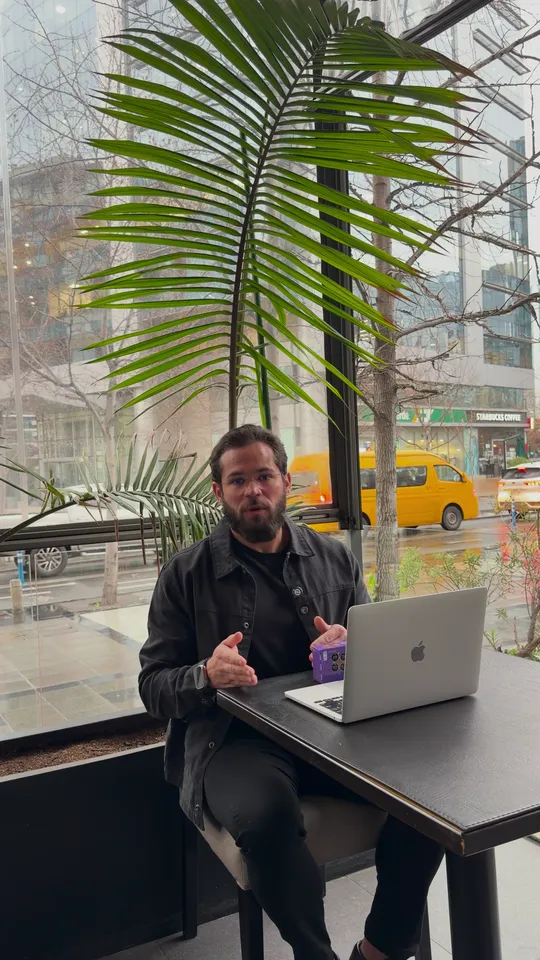
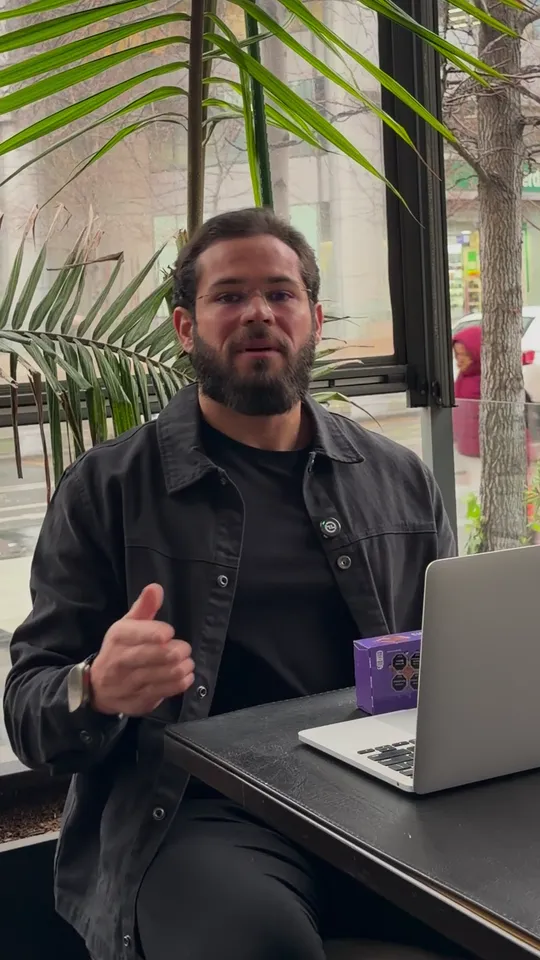
1. Choose the crop for the whole shot
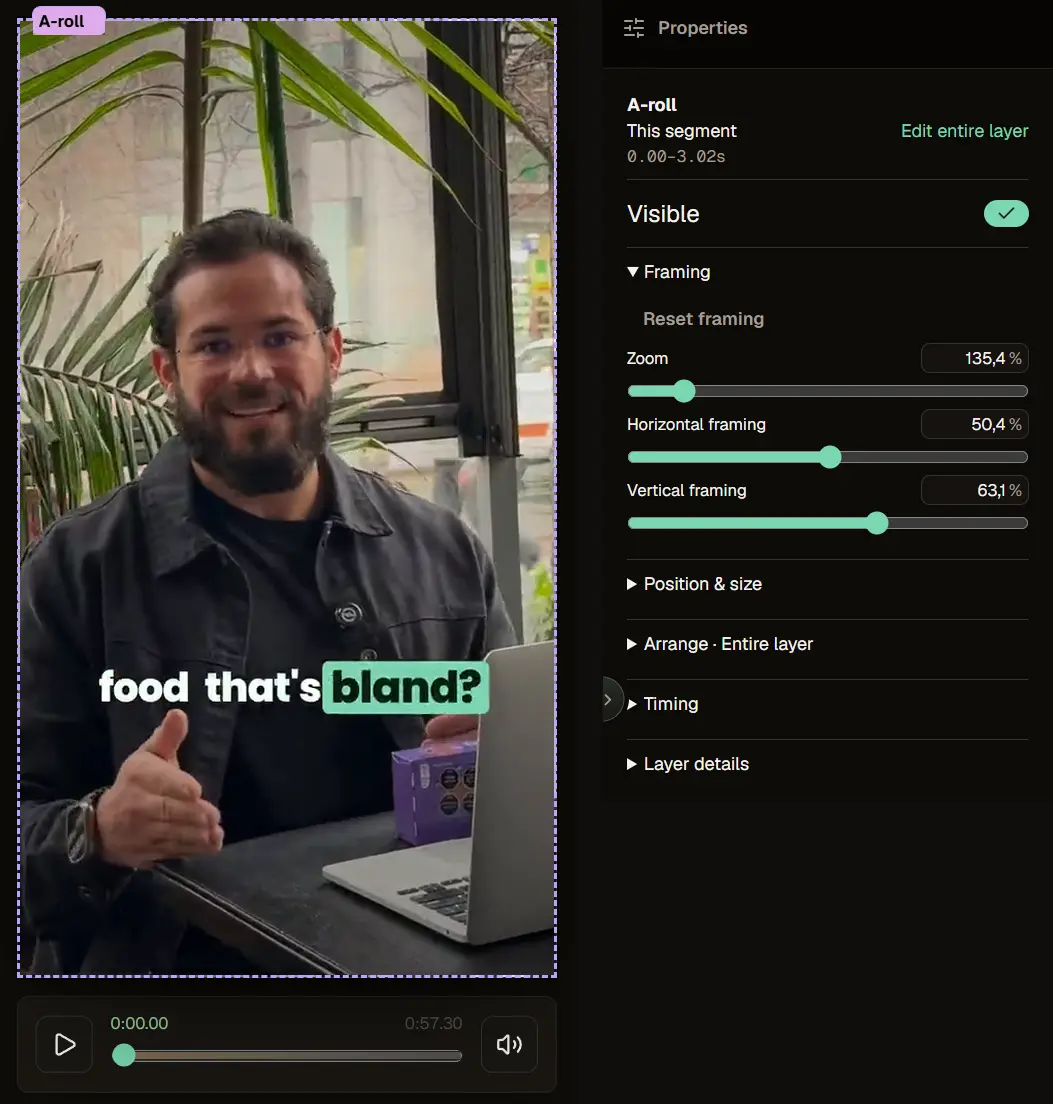
Check the beginning, middle, and end of the shot. A fixed crop works when the subject stays inside it. CutAgent can compose footage for vertical output, but it does not continuously track a moving subject. If someone leaves the selected area, use a wider fit, another shot, or an editing tool that supports animated reframing.
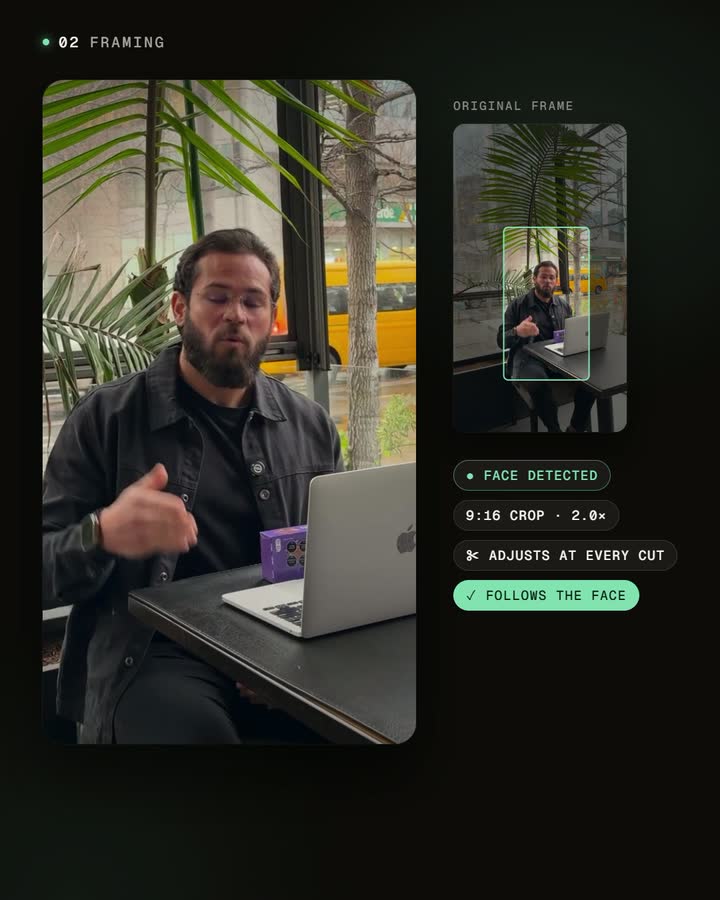
2. Watch the multi-person problem
For two people side by side, compare fitting both speakers with using separate shots. Do not assume the crop will switch to whoever is talking. Review each change of speaker and preserve reactions when they help explain the conversation.
3. Protect on-screen text and graphics
Anything near the edges of the original — lower-thirds, logos, on-screen text — can fall outside the vertical crop. Check that essential graphics survive the reframe, or add them back after cropping.
4. Shoot for vertical when you can
The cleanest fix is upstream: when you record, keep your subject centered and leave room, so any later 9:16 crop still works. You can't always reshoot, but planning for vertical saves the hardest reframes.
5. Review every crop
Play the full result and watch for a subject drifting out of frame, missing graphics, awkward headroom, or covered captions. Check the actual exported file in the target platform preview.
Frequently asked questions
Can I just add blurred bars?
Yes, if fitting the full shot preserves useful context. Choose the treatment that keeps the content readable; there is no guaranteed performance advantage to a crop.
Will automatic reframing cut off my subject?
It can. A fixed crop does not follow movement, so inspect the entire shot and adjust the framing when needed.
What aspect ratio do I need?
9:16 is a practical choice for a portrait-screen composition, not a universal upload requirement. YouTube also accepts eligible square Shorts. Check the current requirements of each destination before export (source checked September 11, 2026).
Is it better to reshoot vertical?
When you can, yes — but reframing makes existing horizontal footage usable.
Reframe one clip
Take a horizontal clip and compare a vertical crop with a fit of the full frame. If a hand gesture, a second speaker, or an important graphic disappears, adjust the composition before exporting. For the rest of the review, use the publishing checklist and caption guide.


